HashiCorp Vault SSH OTP 설정 및 인증 접속 방법
HashiCorp Vault를 이용하여 SSH 서버에 OTP(일회용 비밀번호) 기반 인증을 구성하는 방법입니다.
테스트 환경
| 호스트 이름 | 아이피 주소 | 운영체제 정보 | 비고 |
| node141 | 192.168.0.141 | 우분투 24.04 | vault1.scbyun.com |
| node142 | 192.168.0.142 | 우분투 24.04 | vault2.scbyun.com |
| node143 | 192.168.0.143 | 우분투 24.04 | vault3.scbyun.com |
| sshServer | 192.168.0.111 | 우분투 24.04 | SSH 서버 (접속 대상) |
| sshClient | 192.168.0.112 | 우분투 24.04 | SSH 클라이언트 (접속 출발지) |
OTP 인증 흐름
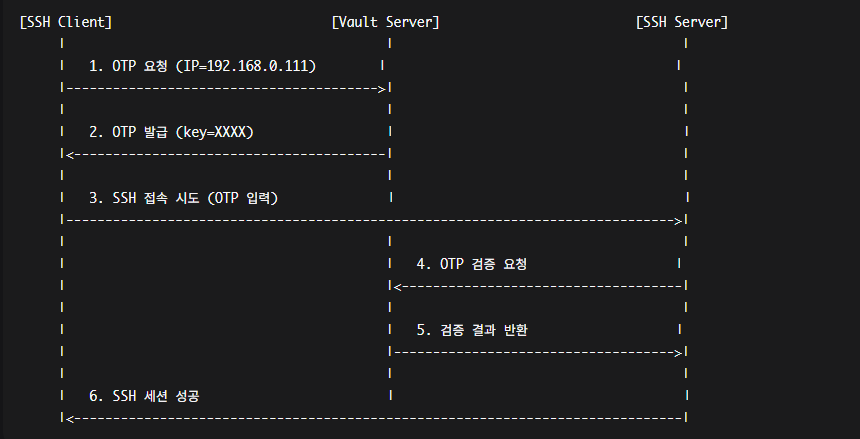
- sshClient가 Vault에 로그인하여 OTP 발급을 요청합니다.
- Vault는 권한 확인 후 일회용 OTP(key)를 발급합니다.
- sshClient가 해당 OTP를 비밀번호로 사용하여 sshServer에 SSH 접속을 시도합니다.
- sshServer의 PAM이 vault-ssh-helper를 호출하여 Vault에 OTP 유효성을 검증합니다.
- Vault가 OTP를 검증하고 즉시 폐기합니다. 인증이 완료되어 SSH 세션이 열립니다.
1. Vault SSH Secret Engine 구성 (node141에서 실행)
1.1 Vault 환경 변수 설정 및 로그인
Vault 서버 주소 및 토큰 환경변수 설정
export VAULT_ADDR='https://vault1.scbyun.com:8200'
export VAULT_TOKEN='hvs.2JkrW3kigeQX0YNlxNey5sda'
Vault 로그인 확인
vault login hvs.2JkrW3kigeQX0YNlxNey5sda연결 상태 확인
vault status1.2 SSH Secret Engine 활성화
vault secrets enable sshSuccess! Enabled the ssh secrets engine at: ssh/활성화 확인
vault secrets list | grep sshPath Type Accessor Description
---- ---- -------- -----------
ssh/ ssh ssh_7ac18611 n/a1.3 SSH OTP 역할(Role) 생성
vault_user1 계정용 OTP Role 생성
vault write ssh/roles/otp_key_role \
    key_type=otp \
    default_user=vault_user1 \
    cidr_list=192.168.0.0/24
Success! Data written to: ssh/roles/otp_key_role역할 설정 확인
vault read ssh/roles/otp_key_roleKey Value
--- -----
allowed_users n/a
cidr_list 192.168.0.0/24
default_user vault_user1
exclude_cidr_list n/a
key_type otp
port 221.4 SSH OTP 정책(Policy) 생성
SSH OTP 전용 Policy 생성
vault policy write ssh-otp-policy - << EOF
# SSH secrets 경로 목록 조회 허용
path "ssh/*" {
  capabilities = [ "list" ]
}

# OTP 발급 허용 (otp_key_role 역할 사용)
path "ssh/creds/otp_key_role" {
  capabilities = ["create", "read", "update"]
}
EOF
정책 확인
vault policy read ssh-otp-policy# SSH secrets 경로 목록 조회 허용
path "ssh/*" {
capabilities = [ "list" ]
}
# OTP 발급 허용 (otp_key_role 역할 사용)
path "ssh/creds/otp_key_role" {
capabilities = ["create", "read", "update"]
}1.5 사용자 인증 설정(Userpass 방식)
Userpass 인증 방식 활성화
vault auth enable userpassVault 사용자 생성 및 Policy 연결
vault write auth/userpass/users/vaultuser \
  password="StrongPass123!" \
  policies="ssh-otp-policy"
토큰 방식으로 OTP를 발급하려면 vault token create -policy=ssh-otp-policy -ttl=24h 명령으로 단기 토큰을 생성하여 사용할 수도 있습니다.
2. SSH 서버 설정(sshServer 192.168.0.111에서 실행)
SSH 접속 대상 서버인 sshServer에서 vault-ssh-helper를 설치하고 PAM 및 SSHD 설정을 변경합니다.
2.1 계정 생성
vault_user1 계정 생성
sudo useradd -m -s /bin/bash vault_user1임시 비밀번호 설정
echo 'vault_user1:vault_user1' | sudo chpasswd계정 생성 확인
id vault_user1uid=1103(vault_user1) gid=1103(vault_user1) groups=1103(vault_user1)2.2 Vault SSH Helper 설치
작업 디렉토리 이동 및 버전 변수 설정
cd /tmp
VAULT_SSH_HELPER_VERSION="0.2.1"
vault-ssh-helper 바이너리 다운로드
#wget https://releases.hashicorp.com/vault-ssh-helper/0.2.1/vault-ssh-helper_0.2.1_linux_amd64.zip
wget https://releases.hashicorp.com/vault-ssh-helper/${VAULT_SSH_HELPER_VERSION}/vault-ssh-helper_${VAULT_SSH_HELPER_VERSION}_linux_amd64.zip
압축 해제 및 설치
unzip vault-ssh-helper_${VAULT_SSH_HELPER_VERSION}_linux_amd64.zip
sudo mv vault-ssh-helper /usr/local/bin/
sudo chmod +x /usr/local/bin/vault-ssh-helper
설치 버전 확인
vault-ssh-helper -versionvault-ssh-helper v0.2.12.3 Vault SSH Helper 설정 파일 생성
설정 디렉토리 생성
sudo mkdir -p /etc/vault-ssh-helper.d설정 파일 생성
sudo tee /etc/vault-ssh-helper.d/config.hcl << 'EOF'
vault_addr = "https://vault1.scbyun.com:8200"
ssh_mount_point = "ssh"
tls_skip_verify = true
allowed_roles = "*"
EOF
파일 권한 설정
sudo chmod 640 /etc/vault-ssh-helper.d/config.hcl주의: tls_skip_verify = true는 자체 서명 인증서 환경용입니다. 공인 CA 인증서를 사용하는 경우 false로 설정하고 ca_cert 경로를 지정하세요.
vault-ssh-helper 설정 검증
- 설정 검증 (-dev 플래그: 개발/테스트 환경용)
vault-ssh-helper -verify-only -config /etc/vault-ssh-helper.d/config.hcl2026/02/10 15:52:31 ==> WARNING: Dev mode is enabled!
2026/02/10 15:52:31 [INFO] using SSH mount point: ssh
2026/02/10 15:52:31 [INFO] using namespace:
2026/02/10 15:52:31 [INFO] vault-ssh-helper verification successful!2.4 PAM(Pluggable Authentication Modules) sshd 설정 수정
기존 PAM 설정 백업
sudo cp /etc/pam.d/sshd /etc/pam.d/sshd_$(date +%Y%m%d_%H%M%S)PAM 설정 파일 편집
- @include common-auth 주석
sudo sed -i 's/^@include common-auth/#@include common-auth/' /etc/pam.d/sshdsudo tee -a /etc/pam.d/sshd << 'EOF'
# Vault SSH OTP Authentication
auth requisite pam_exec.so expose_authtok log=/var/log/vault-ssh.log /usr/local/bin/vault-ssh-helper -config=/etc/vault-ssh-helper.d/config.hcl
auth optional pam_unix.so not_set_pass use_first_pass nodelay
EOF또는 명령어로 추가
---
sudo vim /etc/pam.d/sshd# PAM configuration for the Secure Shell service
# Standard Un*x authentication.
#@include common-auth
...
# Vault SSH Helper Integration
auth requisite pam_exec.so expose_authtok log=/var/log/vault-ssh.log /usr/local/bin/vault-ssh-helper -config=/etc/vault-ssh-helper.d/config.hcl
auth optional pam_unix.so not_set_pass use_first_pass nodelay---
로그 파일 생성 및 권한 설정
sudo touch /var/log/vault-ssh.log
sudo chmod 666 /var/log/vault-ssh.log
2.5 SSHD 설정 수정
기존 sshd_config 백업
sudo cp /etc/ssh/sshd_config /etc/ssh/sshd_config_$(date +%Y%m%d_%H%M%S)기존 항목 수정 (존재하는 경우)
sudo sed -i 's/^#\?PasswordAuthentication.*/PasswordAuthentication yes/' \
  /etc/ssh/sshd_config
sudo sed -i 's/^#\?KbdInteractiveAuthentication.*/KbdInteractiveAuthentication yes/' \
/etc/ssh/sshd_config항목이 없는 경우 추가
grep -q "^ChallengeResponseAuthentication" /etc/ssh/sshd_config \
  || echo "ChallengeResponseAuthentication yes" | sudo tee -a /etc/ssh/sshd_config
또는 명령어로 수정
---
sudo vim /etc/ssh/sshd_configChallengeResponseAuthentication yes
PasswordAuthentication yes
KbdInteractiveAuthentication yes---
설정 확인
grep -E "KbdInteractive|ChallengeResponse|UsePAM|PasswordAuthentication" \
  /etc/ssh/sshd_config | grep -v "^#"
PasswordAuthentication yes
KbdInteractiveAuthentication yes
UsePAM yes
ChallengeResponseAuthentication yes2.6 SSHD 서비스 재시작 및 상태 확인
설정 파일 문법 검증
sudo sshd -tSSHD 서비스 재시작
sudo systemctl restart ssh서비스 상태 확인
sudo systemctl status ssh3. OTP 발급 및 SSH 접속
3.1 OTP 발급 (Vault 서버 또는 sshClient에서 실행)
Vault 환경변수 설정
export VAULT_ADDR='https://vault1.scbyun.com:8200'
export VAULT_TOKEN='hvs.2JkrW3kigeQX0YNlxNey5sda'
OTP 발급 (sshServer IP 지정)
vault write ssh/creds/otp_key_role ip=192.168.0.111Key Value
--- -----
lease_id ssh/creds/otp_key_role/ZWYTRJJEuS45Owjq3zz6jcHn
lease_duration 768h
lease_renewable false
ip 192.168.0.111
key 9fa3489d-6818-2a29-d381-aee97a882598
key_type otp
port 22
username vault_user1중요: key 값 (9fa3489d-6818-2a29-d381-aee97a882598)을 복사하세요!
3.2 SSH 접속 (sshClient: 192.168.0.112에서 실행)
SSH 접속 (vault_user1 계정, OTP 사용)
ssh vault_user1@192.168.0.111또는 vault ssh 명령으로 OTP 발급 + 접속 자동화
vault ssh -role otp_key_role -mode otp vault_user1@192.168.0.1113.3 로그 확인
vault-ssh-helper 인증 로그 확인 (sshServer에서 실행)
sudo tail -f /var/log/vault-ssh.log시스템 인증 로그 확인
sudo tail -f /var/log/auth.log | grep vault_user1
이 문서는 Ubuntu 24.04 + HashiCorp Vault 클러스터(3-node HA) 환경을 기준으로 작성되었습니다. Vault 버전 업그레이드 또는 OS 변경 시 PAM 및 sshd 설정을 재확인하시기 바랍니다.
'리눅스' 카테고리의 다른 글
| Backlog(백로그)란? (0) | 2026.02.20 |
|---|---|
| 도커 컨테이너를 이용해서 Let's Encrypt 인증서를 DNS-01 챌린지로 발급받고 자동 갱신하는 방법 (0) | 2026.02.11 |
| 우분투 24.04에서 3대의 노드를 사용하여 Consul 백엔드 기반의 Vault HA 클러스터를 구성하는 방법 (0) | 2026.02.10 |
| 우분투 24.04에서 TCP Wrappers를 사용하는 sshd 서비스를 접근 제어하는 방법 (0) | 2026.02.03 |
| Nginx 등록되지 않은 가상호스트를 차단 및 제한하는 방법 (0) | 2026.02.03 |


