우분투 26.04 LTS ARM64에 MySQL 8.4.10 설치하기
MySQL을 우분투의 APT 패키지가 아닌 Oracle에서 제공하는 Linux Generic Binary로 설치합니다.
1. 시스템 환경 확인
운영체제
$ lsb_release -d
Description:	Ubuntu 26.04 LTS
CPU Architecture
$ uname -m
aarch64
2. MySQL 설치 전 의존성 패키지 설치
MySQL Generic Binary는 libaio 라이브러리를 필요로 합니다.
libaio1t64 패키지를 설치합니다.
apt updateapt install -y libaio1t64설치 여부 확인
dpkg -l | grep libaioii libaio1t64:arm64 0.3.113-8build1 arm64 Linux kernel AIO access library - shared library또는
ldconfig -p | grep libaiolibaio.so.1t64 (libc6,AArch64) => /usr/lib/aarch64-linux-gnu/libaio.so.1t64libaio.so.1 심볼릭 링크(Alias) 생성
sudo ln -s /usr/lib/aarch64-linux-gnu/libaio.so.1t64 \
  /usr/lib/aarch64-linux-gnu/libaio.so.1
sudo ldconfig심볼릭 링크 확인
ls -l /usr/lib/aarch64-linux-gnu/libaio.so.1lrwxrwxrwx 1 root root 41 Aug 26 13:34 /usr/lib/aarch64-linux-gnu/libaio.so.1 -> /usr/lib/aarch64-linux-gnu/libaio.so.1t64MySQL 공식 문서에서도 Generic Binary 설치 시 libaio가 설치되어 있지 않으면 데이터 디렉터리 초기화와 서버 시작 과정이 실패할 수 있다고 안내하고 있습니다.
3. MySQL OS 사용자 및 그룹 생성
MySQL Server는 별도의 OS 계정으로 실행하는 것이 일반적입니다.
※ MySQL 공식 문서에서는 로그인할 수 없는 시스템 계정을 생성하는 방식을 권장합니다.
groupadd -g 28 mysqluseradd -m -c "MySQL Server" -d /usr/local/mysql -s /usr/sbin/nologin -u 28 -g mysql mysql4. MySQL 8.4.10 Generic Binary 다운로드
MySQL 8.4.10 ARM64 Generic Binary를 다운로드합니다.
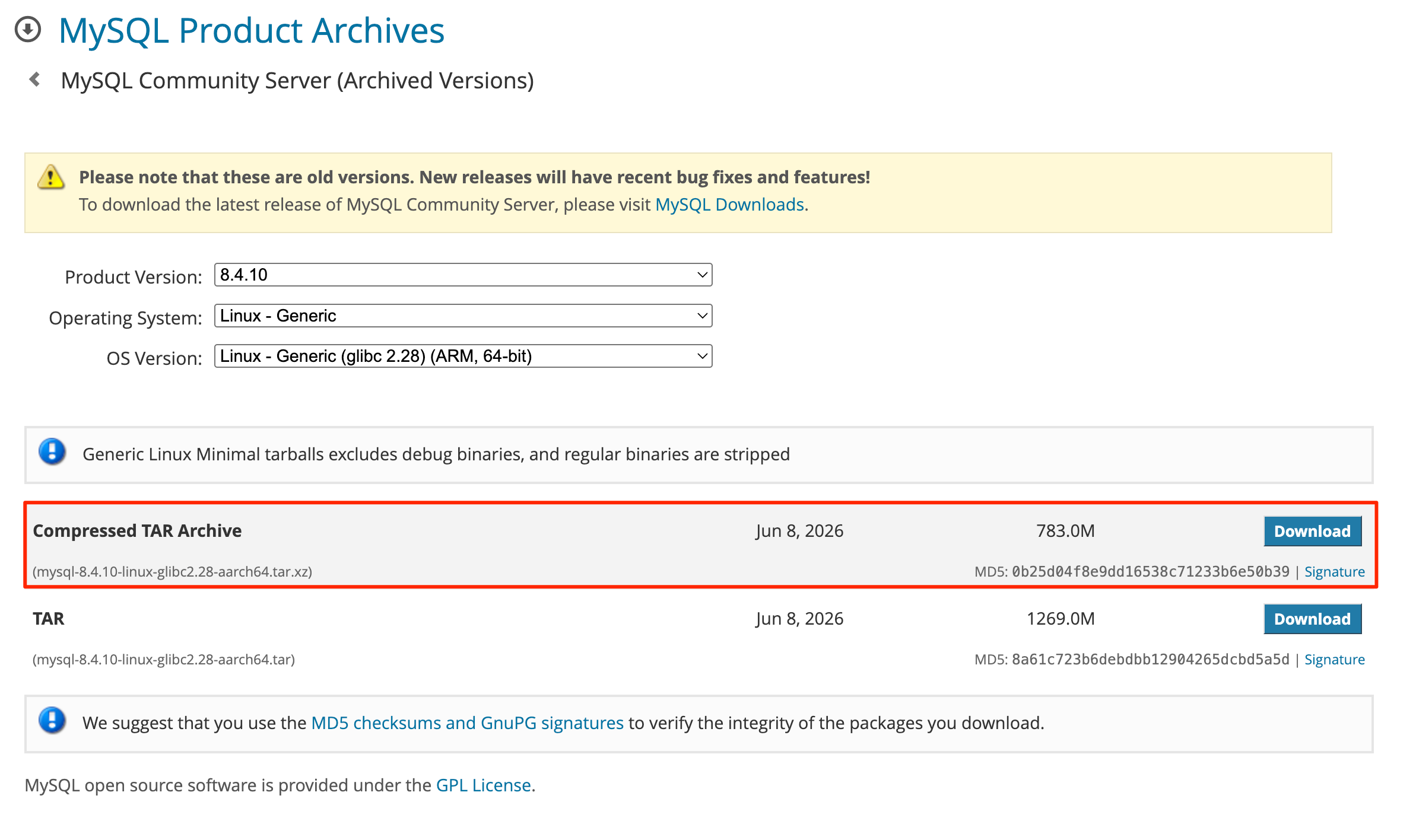
cd /usr/local/srcwget -q \
https://downloads.mysql.com/archives/get/p/23/file/mysql-8.4.10-linux-glibc2.28-aarch64.tar.xz다운로드된 파일 확인
ls -lh mysql-8.4.10-linux-glibc2.28-aarch64.tar.xz-rw-r--r-- 1 root root 821008144 Jun 8 18:43 mysql-8.4.10-linux-glibc2.28-aarch64.tar.xz5. MySQL 바이너리 설치
MySQL 설치 디렉터리를 생성합니다.
mkdir -p /usr/local/mysql압축 해제
tar xf \
  mysql-8.4.10-linux-glibc2.28-aarch64.tar.xz \
  -C /usr/local/mysql \
  --strip-components=1
설치 결과 확인
- MySQL Generic Binary의 기본 설치 구조입니다.
ls -l /usr/local/mysqltotal 288
-rw-r--r-- 1 7161 31415 259903 Jun 4 06:54 LICENSE
-rw-r--r-- 1 7161 31415 666 Jun 4 06:54 README
drwxr-xr-x 2 7161 31415 4096 Jun 4 09:43 bin
drwxr-xr-x 2 7161 31415 4096 Jun 4 09:43 docs
drwxr-xr-x 3 7161 31415 4096 Jun 4 09:43 include
drwxr-xr-x 6 7161 31415 4096 Jun 4 09:43 lib
drwxr-xr-x 4 7161 31415 4096 Jun 4 09:43 man
drwxr-xr-x 28 7161 31415 4096 Jun 4 09:43 share
drwxr-xr-x 2 7161 31415 4096 Jun 4 09:43 support-filesMySQL 버전 확인
/usr/local/mysql/bin/mysql --version/usr/local/mysql/bin/mysql Ver 8.4.10 for Linux on aarch64 (MySQL Community Server - GPL)6. 데이터 및 로그 디렉터리 생성
MySQL 데이터와 에러 로그를 저장할 디렉터리를 생성합니다.
mkdir -p /usr/local/mysql/{data,log,mysql-files}권한 설정
chown -R mysql:mysql /usr/local/mysqlchmod 750 /usr/local/mysql/mysql-filesmysql-files는 secure_file_priv 용도로 사용할 수 있는 별도의 디렉터리입니다.
MySQL 공식 Generic Binary 설치 문서에서도 별도 mysql-files 디렉터리를 생성하는 방식을 안내하고 있습니다.
7. MySQL 설정 파일 작성
MySQL 설정 파일을 /usr/local/mysql/my.cnf에 생성합니다.
cat << 'EOF' > /usr/local/mysql/my.cnf
[mysqld]
bind-address = 0.0.0.0
port = 3306

user = mysql
basedir = /usr/local/mysql
datadir = /usr/local/mysql/data
log-error=/usr/local/mysql/data/mysql_error.log

server_id = 1

# Socket 및 PID
socket = /var/run/mysqld/mysqld.sock
pid-file = /usr/local/mysql/data/mysqld.pid

# Error Log
log-error = /usr/local/mysql/log/error.log

# 파일 Import/Export 제한
secure_file_priv = /usr/local/mysql/mysql-files

[client]
# MySQL Socket
socket = /var/run/mysqld/mysqld.sock
EOF
구문 오류 검사
/usr/local/mysql/bin/mysqld --validate-config권한 설정
chown mysql:mysql /usr/local/mysql/my.cnfchmod 640 /usr/local/mysql/my.cnfmy.cnf 심볼릭 링크 설정
sudo ln -s /usr/local/mysql/my.cnf /etc/my.cnfauthentication_policy에 대하여 MySQL 8.4에는 authentication_policy라는 인증 정책 설정이 존재합니다.
8. MySQL 데이터 디렉터리 초기화
MySQL 데이터 디렉터리를 초기화합니다.
/usr/local/mysql/bin/mysqld \
  --defaults-file=/usr/local/mysql/my.cnf \
  --initialize \
  --user=mysql
--initialize를 사용하면 초기 임시 root 비밀번호가 error log에 기록됩니다.
cat /usr/local/mysql/log/error.log | grep "A temporary password is generated for"2026-08-26T04:35:24.304514Z 6 [Note] [MY-010454] [Server] A temporary password is generated for root@localhost: 0vnWu(prb.p)- root 계정 비밀번호 없이 생성
/usr/local/mysql/bin/mysqld \
  --defaults-file=/usr/local/mysql/my.cnf \
  --initialize-insecure \
  --user=mysql
--initialize-insecure를 사용하면 초기 root 계정이 비밀번호 없이 생성됩니다.
9. MySQL systemd 서비스 구성
cat << 'EOF' > /etc/systemd/system/mysqld.service
[Unit]
Description=MySQL Server 8.4.10
Documentation=https://dev.mysql.com/doc/refman/8.4/en/
After=network.target

[Service]
Type=notify

User=mysql
Group=mysql

RuntimeDirectory=mysqld
RuntimeDirectoryMode=0755

ExecStart=/usr/local/mysql/bin/mysqld \
  --defaults-file=/usr/local/mysql/my.cnf

LimitNOFILE=65535
LimitNPROC=65535

TimeoutStartSec=0
TimeoutStopSec=0

Restart=on-failure
RestartSec=5s

PrivateTmp=true

[Install]
WantedBy=multi-user.target
EOF
systemd 설정 반영
systemctl daemon-reloadsystemctl list-unit-files | grep mysqldmysqld.service disabled enabled부팅 시 자동 시작 및 MySQL 자동 시작
systemctl enable --now mysqld자동 시작 설정 확인
systemctl is-enabled mysqldenabledMySQL 서비스 상태 확인
systemctl status mysqld● mysqld.service - MySQL Server 8.4.10
Loaded: loaded (/etc/systemd/system/mysqld.service; enabled; preset: enabled)
Active: active (running) since Wed 2026-08-26 13:40:27 KST; 10min ago
Invocation: 3e052c3d1de242c9b6dfcd77589ea188
Docs: https://dev.mysql.com/doc/refman/8.4/en/
Main PID: 306858 (mysqld)
Status: "Server is operational"
Tasks: 34 (limit: 4136)
Memory: 449.5M (peak: 462.8M)
CPU: 4.362s
CGroup: /system.slice/mysqld.service
└─306858 /usr/local/mysql/bin/mysqld --defaults-file=/usr/local/mysql/my.cnfsystemd 로그
journalctl -u mysqld실시간 systemd 로그 확인
journalctl -u mysqld -f실시간 error 로그 확인
tail -f /usr/local/mysql/log/error.log10. MySQL 접속 및 root 비밀번호 설정
root 계정으로 접속합니다.
/usr/local/mysql/bin/mysql -uroot -p -h 127.0.0.1접속 후 root 비밀번호를 설정합니다.
ALTER USER 'root'@'localhost' IDENTIFIED BY 'MySQLP@sswr0d';FLUSH PRIVILEGES;설정 후 종료합니다.
exit;이후 비밀번호를 사용하여 접속합니다.
/usr/local/mysql/bin/mysql -uroot -p -h 127.0.0.1Enter password:
Welcome to the MySQL monitor. Commands end with ; or \g.
Your MySQL connection id is 9
Server version: 8.4.10 MySQL Community Server - GPL
Copyright (c) 2000, 2026, Oracle and/or its affiliates.
Oracle is a registered trademark of Oracle Corporation and/or its
affiliates. Other names may be trademarks of their respective
owners.
Type 'help;' or '\h' for help. Type '\c' to clear the current input statement.
mysql>16. MySQL 정상 동작 확인
MySQL Server가 정상적으로 동작하는지 확인합니다.
프로세스 확인
ps -ef | grep '[m]ysqld'Socket 확인
ls -l /tmp/mysql.sock포트 확인
ss -lntp | grep 3306MySQL 접속
- MySQL 내부에서도 상태를 확인할 수 있습니다.
/usr/local/mysql/bin/mysql -uroot -p -S /var/run/mysqld/mysqld.sockmysql> SELECT VERSION();
+-----------+
| VERSION() |
+-----------+
| 8.4.10 |
+-----------+
1 row in set (0.00 sec)
mysql> SELECT @@datadir;
+------------------------+
| @@datadir |
+------------------------+
| /usr/local/mysql/data/ |
+------------------------+
1 row in set (0.00 sec)
mysql> SELECT @@socket;
+-----------------------------+
| @@socket |
+-----------------------------+
| /var/run/mysqld/mysqld.sock |
+-----------------------------+
1 row in set (0.00 sec)
mysql>
'퍼블릭 클라우드' 카테고리의 다른 글
| 우분투 24.04에서 MySQL 8을 설치하고 설정하는 방법 (0) | 2025.12.09 |
|---|---|
| AWS EC2 우분투 24.04에 WordPress를 설치하는 방법 (0) | 2025.12.08 |
| ZABBIX 템플릿을 활용하여 AWS CodeDeploy 에이전트를 모니터링하는 방법 (0) | 2025.09.24 |
| AWS 네트워크 방화벽 - 상태 유지 기본 작업 (1) | 2025.08.20 |
| Amazon Linux 2에서 pam_faillock 모듈을 사용해서 계정 잠금 정책을 설정하는 방법 (0) | 2025.08.18 |


