728x90
반응형
VMware ESXi 8.0에서 물리 네트워크 어댑터(vmnic)의 현재 링크 속도를 확인하고 속도(Speed)를 변경하는 방법
1. ESXi Web UI (Host Client)에서 변경하기
현재 속도 확인
- ESXi Host Client에 로그인합니다.
- 왼쪽 탐색 창에서 네트워킹(Networking)을 클릭한 후 물리 어댑터(Physical adapters) 탭으로 이동합니다.
- 목록에서 확인하려는 어댑터(예: vmnic0)의 속도(Speed) 열을 보면 현재 링크 속도와 전이중(Full Duplex) 여부를 확인할 수 있습니다.
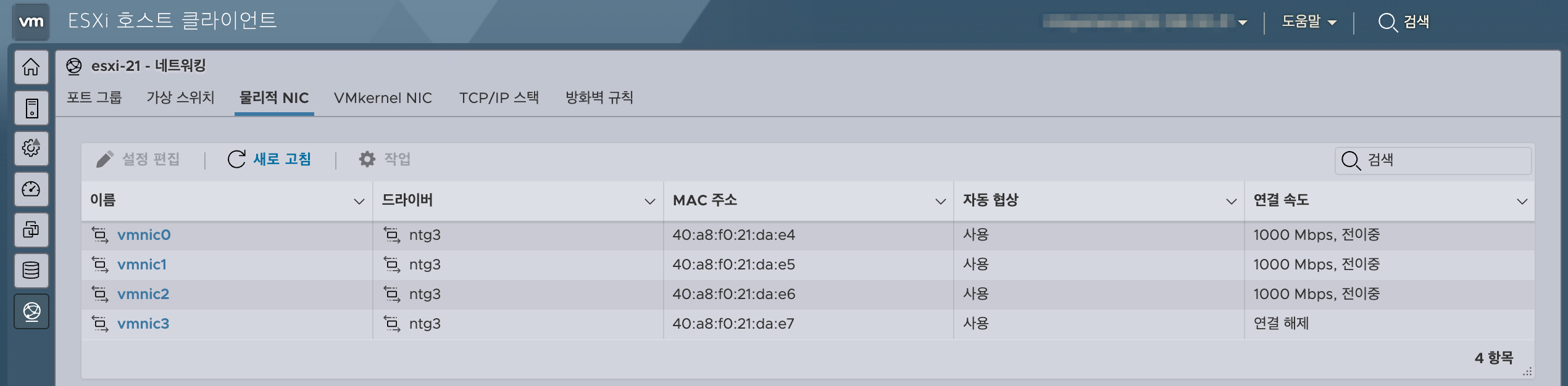
속도를 1Gbps로 고정 변경
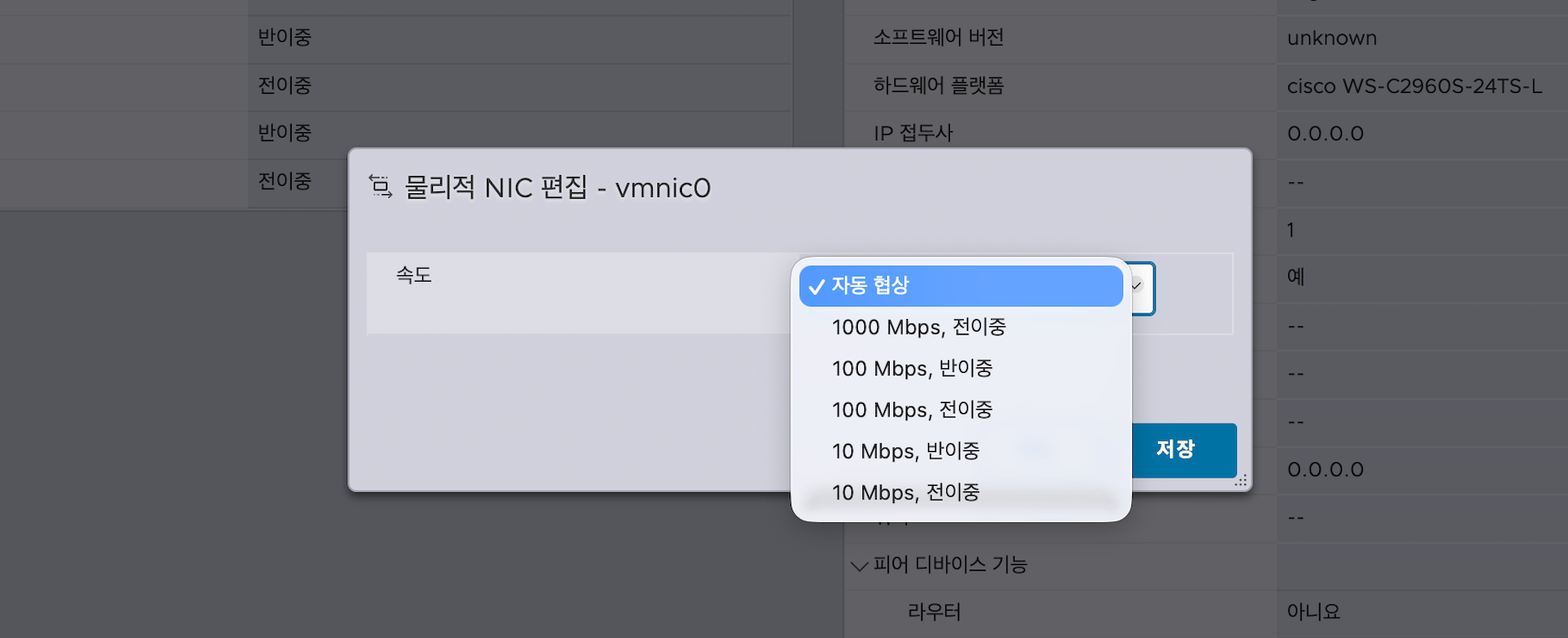
- 변경하려는 물리 어댑터를 선택하고 상단의 설정 편집(Edit settings)을 클릭합니다.
- 구성 속도(Configured speed) 드롭다운 메뉴를 클릭합니다.
- 자동 협상(Auto negotiate) 대신 1000Mbps, 전이중(1000 Mbps, Full Duplex)을 선택합니다.
- 저장(Save)을 누르면 적용됩니다.
728x90
2. ESXi Shell 또는 SSH 접속하기
현재 vmnic 링크 속도 확인
시스템의 물리 어댑터 목록과 현재 상태를 확인합니다.
esxcli network nic listName PCI Device Driver Admin Status Link Status Speed Duplex MAC Address MTU Description
------ ------------ ------ ------------ ----------- ----- ------ ----------------- ---- -----------
vmnic0 0000:48:00.0 ntg3 Up Up 100 Full 6c:92:cf:0e:59:62 1500 Broadcom Corporation NetXtreme BCM5719 Gigabit Ethernet
vmnic1 0000:48:00.1 ntg3 Up Up 1000 Full 6c:92:cf:0e:59:63 1500 Broadcom Corporation NetXtreme BCM5719 Gigabit Ethernet
vmnic2 0000:48:00.2 ntg3 Up Down 0 Half 6c:92:cf:0e:59:64 1500 Broadcom Corporation NetXtreme BCM5719 Gigabit Ethernet
vmnic3 0000:48:00.3 ntg3 Up Down 0 Half 6c:92:cf:0e:59:65 1500 Broadcom Corporation NetXtreme BCM5719 Gigabit Ethernet- Speed : 현재 링크 속도(Mbps)
- Duplex : Half / Full
- Link Status : 물리 연결 상태
특정 vmnic 상세 정보 확인
esxcli network nic get -n vmnic0 Advertised Auto Negotiation: true
Advertised Link Modes: Auto, 1000BaseT/Full, 100BaseT/Half, 100BaseT/Full, 10BaseT/Half, 10BaseT/Full
Auto Negotiation: true
Backing DPUId: N/A
Cable Type: Twisted Pair
Current Message Level: 7
Driver Info:
Bus Info: 0000:48:00:0
Driver: ntg3
Firmware Version: bc 1.48 ncsi 1.5.52.0
Version: 4.1.14.0
Link Detected: true
Link Status: Up
Name: vmnic0
PHYAddress: 0
Pause Autonegotiate: true
Pause RX: true
Pause TX: true
Supported Ports: TP
Supports Auto Negotiation: true
Supports Pause: true
Supports Wakeon: true
Transceiver: internal
Virtual Address: 00:50:56:5d:28:62
Wakeon: MagicPacket(tm)지원 가능한 속도 모드 확인
- 어댑터를 강제로 변경하기 전에 해당 NIC가 1Gbps 고정 설정을 지원하는지 확인하는 것이 안전합니다. (vmnic0 자리에 대상 어댑터 이름 입력)
Advertised Link Modes: Auto, 1000BaseT/Full, 100BaseT/Half, 100BaseT/Full, 10BaseT/Half, 10BaseT/Fullvmnic 속도를 1Gbps로 변경
Auto Negotiation 사용 (권장)
- 대부분의 경우 Auto Negotiation 활성화가 가장 안정적입니다.
esxcli network nic set -n vmnic0 -a다시 확인
esxcli network nic get -n vmnic0수동으로 1Gbps Full 설정
- 속도를 1000Mbps, 전이중 모드로 강제 설정합니다.
esxcli network nic set -n vmnic0 -s 1000 -d full- -n : 네트워크 인터페이스 이름 (vmnicX)
- -s : 속도 (Mbps 단위, 1Gbps는 1000)
- -d : 전이중 모드 (full)
변경 사항 확인
- Link Speed가 정상적으로 고정되었는지 확인합니다.
esxcli network nic listName Link Status Speed Duplex
------ ----------- ----- ------
vmnic0 Up 1000 Full
728x90
반응형
'리눅스' 카테고리의 다른 글
| SSL 인증서 체인(Bundle) 구성 (0) | 2026.06.05 |
|---|---|
| systemd-logind Power Key 이벤트로 인한 서버 비정상 종료 분석 및 해결 방법 (0) | 2026.06.04 |
| 우분투 24.04에서 MySQL 8.4 LTS 바이너리(Binary) 방식으로 설치하는 방법 (0) | 2026.05.21 |
| 우분투 24.04에서 사용하는 systemd-resolved DNS 캐시 관리 방법 (0) | 2026.05.21 |
| 우분투 24.04 Stub Resolver 동작 및 설정 정리 (0) | 2026.05.21 |


