728x90
반응형
macOS에서 Karabiner-Elements로 INS/DEL/HOME/END 키 매핑하기
Karabiner-Elements는 macOS에서 키보드 입력을 세밀하게 제어할 수 있는 대표적인 키 매핑 도구입니다.
1. Karabiner-Element 설치
Karabiner-Element : https://karabiner-elements.pqrs.org
2. 설정 파일 위치
Karabiner 설정은 다음 파일에서 관리됩니다.
~/.config/karabiner/karabiner.json3. 주요 키 매핑 구성
아래 설정은 다음과 같은 목적을 기준으로 구성되어 있습니다.
| 키(원도우) | 동작 |
| Ctrl + Insert | 복사 (⌘ + C) |
| Shift + Insert | 붙여넣기 (⌘ + V) |
| Shift + Delete | 잘라내기 (⌘ + X) |
| Home | 줄 시작 이동 (⌘ + ←) |
| End | 줄 끝 이동 (⌘ + →) |
| Shift + Home | 줄 시작까지 선택(⇧ + ⌘ + ←) |
| Shift + End | 줄 끝까지 선택(⇧ + ⌘ + →) |
4. karabiner.json 설정
~/.config/karabiner/karabiner.json{
"global": {
"check_for_updates_on_startup": true,
"show_in_menu_bar": true
},
"profiles": [
{
"name": "Default profile",
"selected": true,
"parameters": {
"delay_milliseconds_before_open_device": 1000
},
"complex_modifications": {
"parameters": {
"basic.simultaneous_threshold_milliseconds": 50,
"basic.to_delayed_action_delay_milliseconds": 500,
"basic.to_if_alone_timeout_milliseconds": 1000,
"basic.to_if_held_down_threshold_milliseconds": 500
},
"rules": [
{
"description": "Copy (Ctrl + Insert)",
"manipulators": [
{
"type": "basic",
"from": {
"key_code": "insert",
"modifiers": {
"mandatory": ["left_control"],
"optional": ["any"]
}
},
"to": [
{
"key_code": "c",
"modifiers": ["command"]
}
]
}
]
},
{
"description": "Paste (Shift + Insert)",
"manipulators": [
{
"type": "basic",
"from": {
"key_code": "insert",
"modifiers": {
"mandatory": ["shift"],
"optional": ["any"]
}
},
"to": [
{
"key_code": "v",
"modifiers": ["command"]
}
]
}
]
},
{
"description": "Cut (Shift + Delete)",
"manipulators": [
{
"type": "basic",
"from": {
"key_code": "delete_forward",
"modifiers": {
"mandatory": ["left_shift"],
"optional": ["any"]
}
},
"to": [
{
"key_code": "x",
"modifiers": ["command"]
}
]
}
]
},
{
"description": "Home → Command + Left (except remote/terminal)",
"manipulators": [
{
"type": "basic",
"from": { "key_code": "home" },
"to": [
{
"key_code": "left_arrow",
"modifiers": ["command"]
}
],
"conditions": [
{
"type": "frontmost_application_unless",
"bundle_identifiers": [
"^com\\.microsoft\\.rdc$",
"^com\\.microsoft\\.rdc\\.",
"^net\\.sf\\.cord$",
"^com\\.thinomenon\\.RemoteDesktopConnection$",
"^com\\.itap-mobile\\.qmote$",
"^com\\.nulana\\.remotixmac$",
"^com\\.p5sys\\.jump\\.mac",
"^com\\.teamviewer\\.TeamViewer$",
"^com\\.vmware\\.",
"^com\\.parallels\\.",
"^org\\.virtualbox\\.",
"^com\\.citrix\\.",
"^org\\.macports\\.X11$",
"^com\\.apple\\.Terminal$",
"^com\\.googlecode\\.iterm2$",
"^co\\.zeit\\.hyper",
"^io\\.alacritty$",
"^net\\.kovidgoyal\\.kitty$"
]
}
]
}
]
},
{
"description": "End → Command + Right (except remote/terminal)",
"manipulators": [
{
"type": "basic",
"from": { "key_code": "end" },
"to": [
{
"key_code": "right_arrow",
"modifiers": ["command"]
}
],
"conditions": [
{
"type": "frontmost_application_unless",
"bundle_identifiers": [
"^com\\.microsoft\\.rdc$",
"^com\\.microsoft\\.rdc\\.",
"^net\\.sf\\.cord$",
"^com\\.thinomenon\\.RemoteDesktopConnection$",
"^com\\.itap-mobile\\.qmote$",
"^com\\.nulana\\.remotixmac$",
"^com\\.p5sys\\.jump\\.mac",
"^com\\.teamviewer\\.TeamViewer$",
"^com\\.vmware\\.",
"^com\\.parallels\\.",
"^org\\.virtualbox\\.",
"^com\\.citrix\\.",
"^org\\.macports\\.X11$",
"^com\\.apple\\.Terminal$",
"^com\\.googlecode\\.iterm2$",
"^co\\.zeit\\.hyper",
"^io\\.alacritty$",
"^net\\.kovidgoyal\\.kitty$"
]
}
]
}
]
},
{
"description": "Shift + Home → Select to Beginning",
"manipulators": [
{
"type": "basic",
"from": {
"key_code": "home",
"modifiers": { "mandatory": ["shift"] }
},
"to": [
{
"key_code": "left_arrow",
"modifiers": ["command", "shift"]
}
]
}
]
},
{
"description": "Shift + End → Select to End",
"manipulators": [
{
"type": "basic",
"from": {
"key_code": "end",
"modifiers": { "mandatory": ["shift"] }
},
"to": [
{
"key_code": "right_arrow",
"modifiers": ["command", "shift"]
}
]
}
]
},
{
"description": "Hyper Key → Control (CLI optimized)",
"manipulators": [
{
"type": "basic",
"from": {
"key_code": "d",
"modifiers": {
"mandatory": ["right_command", "right_control", "right_shift", "right_option"]
}
},
"to": [{ "key_code": "d", "modifiers": ["left_control"] }]
},
{
"type": "basic",
"from": {
"key_code": "z",
"modifiers": {
"mandatory": ["right_command", "right_control", "right_shift", "right_option"]
}
},
"to": [{ "key_code": "z", "modifiers": ["left_control"] }]
},
{
"type": "basic",
"from": {
"key_code": "x",
"modifiers": {
"mandatory": ["right_command", "right_control", "right_shift", "right_option"]
}
},
"to": [{ "key_code": "x", "modifiers": ["left_control"] }]
},
{
"type": "basic",
"from": {
"key_code": "c",
"modifiers": {
"mandatory": ["right_command", "right_control", "right_shift", "right_option"]
}
},
"to": [{ "key_code": "c", "modifiers": ["left_control"] }]
},
{
"type": "basic",
"from": {
"key_code": "v",
"modifiers": {
"mandatory": ["right_command", "right_control", "right_shift", "right_option"]
}
},
"to": [{ "key_code": "v", "modifiers": ["left_control"] }]
},
{
"type": "basic",
"from": {
"key_code": "b",
"modifiers": {
"mandatory": ["right_command", "right_control", "right_shift", "right_option"]
}
},
"to": [{ "key_code": "b", "modifiers": ["left_control"] }]
}
]
}
]
},
"devices": [
{
"identifiers": {
"is_keyboard": true,
"is_pointing_device": true,
"vendor_id": 1452,
"product_id": 597
},
"ignore": false
},
{
"identifiers": {
"is_keyboard": true,
"is_pointing_device": true,
"vendor_id": 13364,
"product_id": 646
},
"ignore": false
}
],
"virtual_hid_keyboard": {
"country_code": 0,
"keyboard_type_v2": "ansi"
}
}
]
}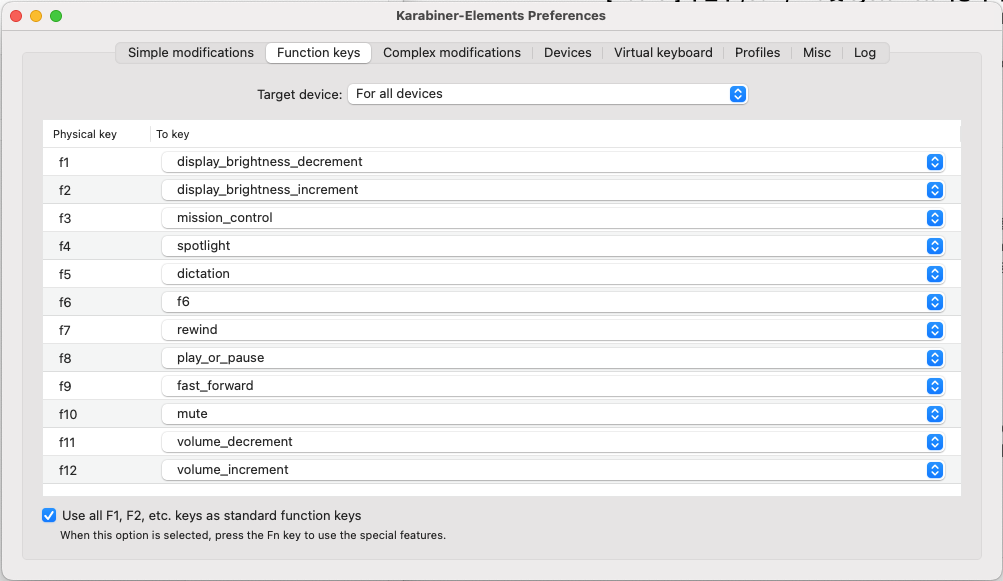
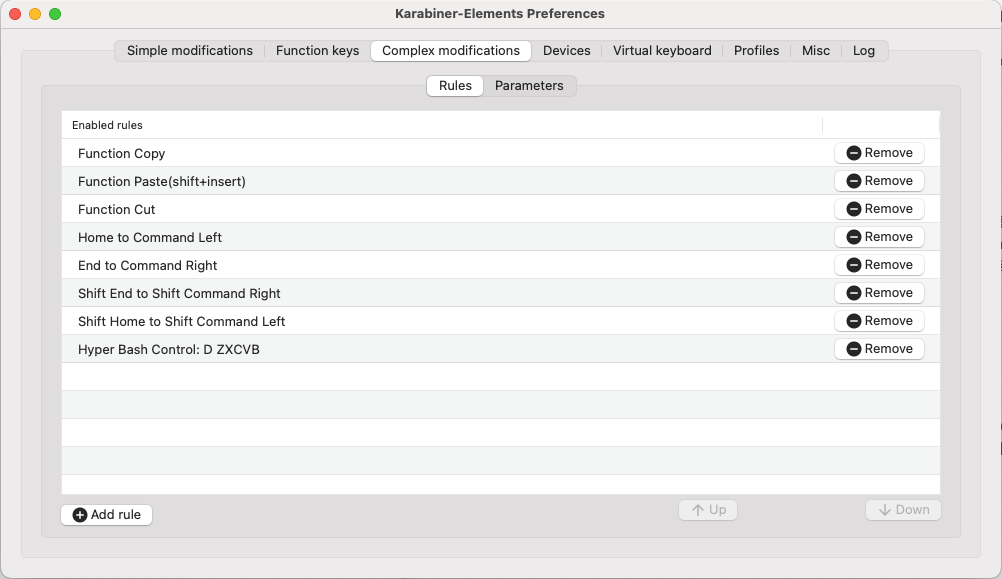
기본 macOS 키보드는 Windows/Linux 환경과 달리 Insert, Delete(Forward), Home, End 키 동작이 제한적이기 때문에 개발 및 서버 운영 환경에서는 불편함이 발생할 수 있습니다.
Mac vs Windows 키 비교
| Mac 아이콘 | Mac 키 | Windows 키 | 설명 |
| ⌘ | Command | Ctrl | 주요 단축키 키 (복사/붙여넣기 등) |
| ⌃ | Control | Ctrl | 보조 제어 키 (터미널, CLI에서 주로 사용) |
| ⌥ | Option | Alt | 특수 입력 / 보조 기능 |
| ⇧ | Shift | Shift | 대문자 / 선택 확장 |
728x90
반응형
'맥(솔라리스)' 카테고리의 다른 글
| macOS에서 Brew 패키지 매니저를 사용하여 JAVA 11을 설치하는 방법 (0) | 2022.05.09 |
|---|---|
| Mac Spring Boot 프로젝트 생성(vscode) (0) | 2022.05.09 |
| mac(macOS)에 Double Commander 설치 및 설정하기 (0) | 2022.04.23 |
| 맥에 UTM Virtual Machines를 설치하는 방법 (0) | 2022.04.19 |
| macOS에서 시간 및 날짜 패턴을 변경하는 방법 (0) | 2022.03.06 |


